If you’ve ever managed a blog, online store, or social media page, you know how repetitive it feels to manually post new updates. You publish something, copy the link, then share it on multiple platforms, over and over again. It eats your time, and honestly, it’s not the most exciting part of running an online business.
That’s where auto-post Chrome extensions for RSS feeds come in. These little tools quietly work in the background to automate your content sharing. You set up your RSS feed once, and the extension automatically posts your new updates wherever you want, social media, blogs, or even internal dashboards.
If you’re a small business owner or a startup founder in the USA trying to save time and money, a cheap RSS auto post Chrome extension might be exactly what you need.
How Does an Auto Post Chrome Extension Work?
- You have a source of new content, maybe your blog, YouTube channel, or eCommerce site.
- That source has an RSS feed, which is basically a live list of your latest posts.
- The Chrome extension connects to that feed and automatically publishes the updates where you want, like Twitter (X), LinkedIn, Facebook, or even WordPress.
So instead of manually copying and pasting links every time you upload something new, the extension does it instantly for you. It’s like hiring a digital assistant who never gets tired or forgets a post.
Why This Matters for Small Businesses in the USA
Time and attention are two of your biggest resources as a small business owner. Every minute you spend doing repetitive tasks, like posting the same link on five platforms, is a minute you’re not spending improving your products, talking to customers, or closing sales.
Here’s how auto-post RSS tools help in the real world:
- Save time: No need to log in to every platform.
- Stay consistent: Your followers always see fresh updates, even if you’re asleep.
- Increase visibility: More posts = more eyes on your business.
- Reduce mistakes: Automation keeps your formatting and links clean.
For example, imagine you run a local online magazine or podcast in Texas. You release new episodes twice a week. Instead of manually promoting each episode on your social pages, your RSS-connected Chrome extension does it instantly, every time you upload something new.
What to Look for in a Chrome Extension for RSS Auto Posting
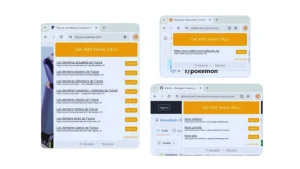
1. Ease of Setup
You shouldn’t need a degree in computer science. A good tool should connect to your RSS feed and posting destination in under five minutes.
2. Supported Platforms
Some extensions only post to one or two social sites. Look for one that supports:
- Facebook Pages or Groups
- LinkedIn Profiles or Pages
- Twitter (X)
- Tumblr
- WordPress
- Telegram
3. Customization Options
You might want to change the caption, add hashtags, or shorten the post. A great extension lets you customize your message before it goes out.
4. Price and Value
There are plenty of cheap or even free options out there. But “cheap” doesn’t mean low quality; it means you get automation without paying for features you’ll never use.
5. Reliability
No one wants an automation tool that randomly stops posting. Check reviews and last update dates before installing any Chrome extension.
Best Cheap Auto Post Chrome Extensions for RSS Feeds
1. Feedly Mini + Zapier (Free to Start)
Feedly is one of the best RSS readers out there. When combined with Zapier, it can automatically share posts to multiple platforms.
- Best for: Bloggers, digital marketers
- Pros: Clean interface, reliable automation
- Cons: The Zapier free plan has limited “zaps” per month
2. Dlvr.it (Budget-Friendly)
Dlvr.it lets you connect RSS feeds and post them automatically to social platforms.
- Best for: Businesses with multiple social accounts
- Price: Starts around $10/month (cheap compared to full social suites)
- Bonus: Analytics dashboard to see how posts perform
3. IFTTT (If This Then That)
A classic automation tool that still works great for RSS feeds.
- Best for: DIY users who like flexibility
- Example: “If a new RSS item appears, then post to Twitter.”
- Cost: Free basic plan, optional paid upgrade
4. Auto RSS Feed Poster for Chrome
Some Chrome extensions, like “RSS Auto Poster” or “Auto RSS Feed Poster,” work directly inside your browser.
- Best for: Quick automation without extra accounts
- Pros: Lightweight, runs locally in Chrome
- Cons: Limited customization, may need manual setup
5. SocialBee (Pro Option)
Slightly pricier but powerful. SocialBee integrates RSS feeds and schedules content automatically across platforms.
- Best for: Agencies or growing brands
- Trial: Free for 14 days
- Why USA users love it: Great support and regular updates
A Quick Example: Automating Blog Updates
Let’s say you run a food blog from Chicago. You publish three recipes a week, and each one goes live on your site with an RSS entry. Here’s how your setup might look:
- Connect your RSS feed to Dlvr.it.
- Choose your destinations, Facebook Page, X (Twitter), and LinkedIn.
- Customize your caption: “New recipe just dropped! {title}, Check it out: {link}”
- Done! Every time you post, Dlvr.it shares it automatically.
You can literally spend that saved time trying new recipes instead of copying links all day.
How to Find Cheap Deals in the USA
If you’re based in the USA, there are a few ways to find discounted or free automation tools:
- Chrome Web Store – Search for “auto post RSS” and sort by ratings. Many free extensions have pro versions with more features.
- Lifetime deal sites – Check places like AppSumo or StackSocial for discounted automation apps.
- Freemium plans – Tools like Buffer, IFTTT, or Dlvr.it often give you enough features for small-scale automation at zero cost.
A quick tip: test the free version first. You might find it does everything you need without upgrading.
Common Mistakes to Avoid
- Posting too often. Automation doesn’t mean spamming. Spread your posts out using schedules.
- Ignoring personalization. Add captions that sound human, not robotic.
- Not checking links. Make sure your RSS feed items link properly; broken links can lose trust fast.
- Over-automating. It’s tempting to automate everything, but keep some posts personal and unique.
Automation should amplify your voice, not replace it.
Small Businesses That Benefit the Most
You’ll get the biggest value if you run:
- E-commerce stores – Share new product arrivals automatically.
- Local news sites – Post new stories without touching a keyboard.
- Podcasts – Announce new episodes right after publishing.
- Content creators – Keep followers engaged 24/7.
One bakery in California, for instance, set up RSS auto-posting for their daily menu updates. Instead of writing posts manually, their Chrome extension pushes new menus to Facebook and Instagram automatically. Customers love the consistency, and the owner loves the extra free time.
How to Make the Most of It
Here are some smart tricks to make your automation even more effective:
- Add hashtags automatically based on category (e.g., #Tech, #Food, #Deals).
- Shorten links with Bitly for a clean look.
- Include images in posts (some tools can grab them directly from your feed).
- Monitor analytics to see which posts get the most clicks.
Over time, you’ll spot patterns, maybe your followers respond better to certain headlines or post times. That’s how you turn automation from a convenience into a growth engine.
Is It Worth Paying for a Premium Tool?
If you’re posting more than once a day across multiple platforms, yes, it’s usually worth it.
Think of it like this: even a $10/month plan that saves you 5 hours of work weekly is a great deal. That’s like paying $0.50 per hour to free up your time. Not bad.
However, if you’re just starting or managing one or two feeds, you can easily stick with free or freemium Chrome extensions until your business grows.
Automation isn’t about replacing your personal touch; it’s about freeing up your time so you can focus on what really matters. A cheap auto-post Chrome extension for RSS feeds can turn hours of repetitive work into a simple one-time setup. Whether you’re promoting blog posts, podcasts, or new products, this tool quietly keeps your audience in the loop without lifting a finger.
And the best part? You don’t need to spend hundreds. With free or budget options available in the USA, automation is now within reach for small businesses everywhere. So if you’re still copying links by hand… maybe it’s time to let a smart little extension handle it for you.



